Download Reports
Clicking the “DOWNLOAD SELECTED REPORTS” Button, with at least one of the reports selected, will open the report format dialogue box.
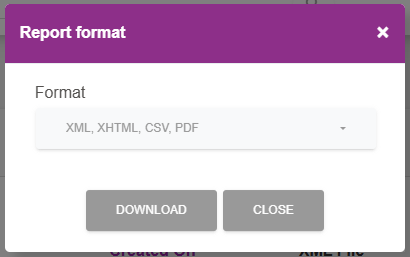
By default all formats are selected for download, however this can be changed by selecting the format dropdown and altering as necessary.
Once the filter is set, as required, click “DOWNLOAD” to continue.
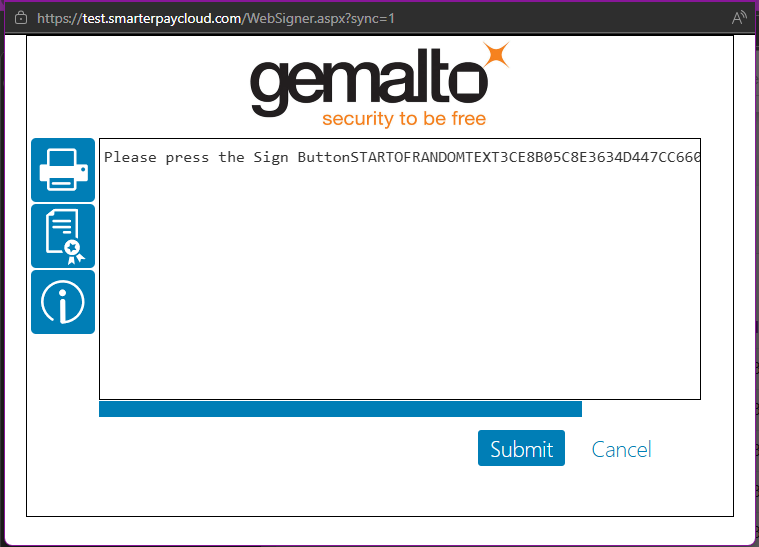
The Websigner dialogue will be displayed. Click “Submit”, and follow the instructions to enter the pin for the card being used.
These details will be used to log in to Bacs and download the reports based selection set previously.
Once complete, the user will be logged out of Bacs and summary dialogue is shown.
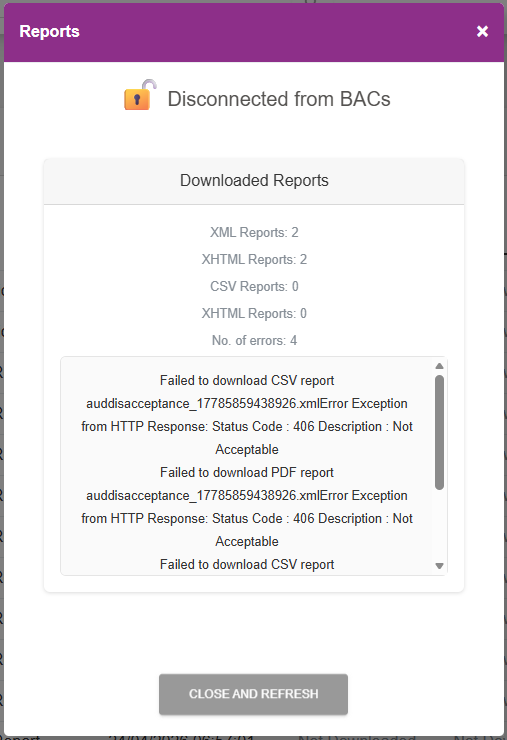
Note: Not all formats are available for all reports types, therefore the summary may show errors. In this example a CSV or PDF can't be downloaded for an Auddis acceptance report.
Click “CLOSE and REFRESH” to close the dialogue and refresh the Reports list.