The status of the Submission varies depending on the Method used to sent the file to Bacs.
For a Bureau submission, or a Direct submission, using unattended HSM (Hardware Security Module) the process would be:
“Pending Submission” and then either “Submitted” or “Submitted With Errors”.
For a submission using a Bacs Smart Card the process would be:
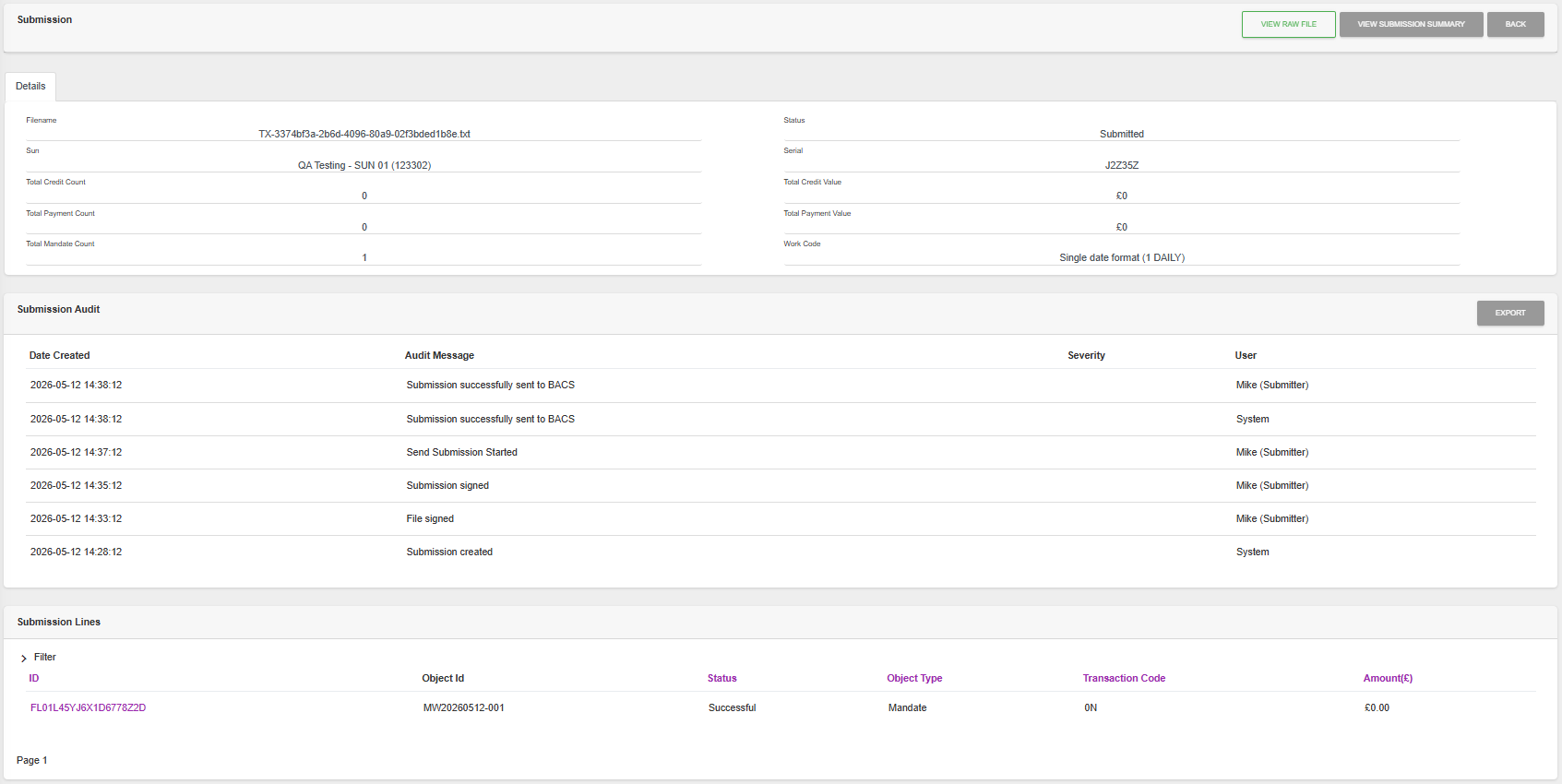
“Awaiting Signature”, then “Signed”, “Sending” and then either “Submitted”, “Submitted With Errors” or “Error”.
Click to Expand the Full signing and sending process
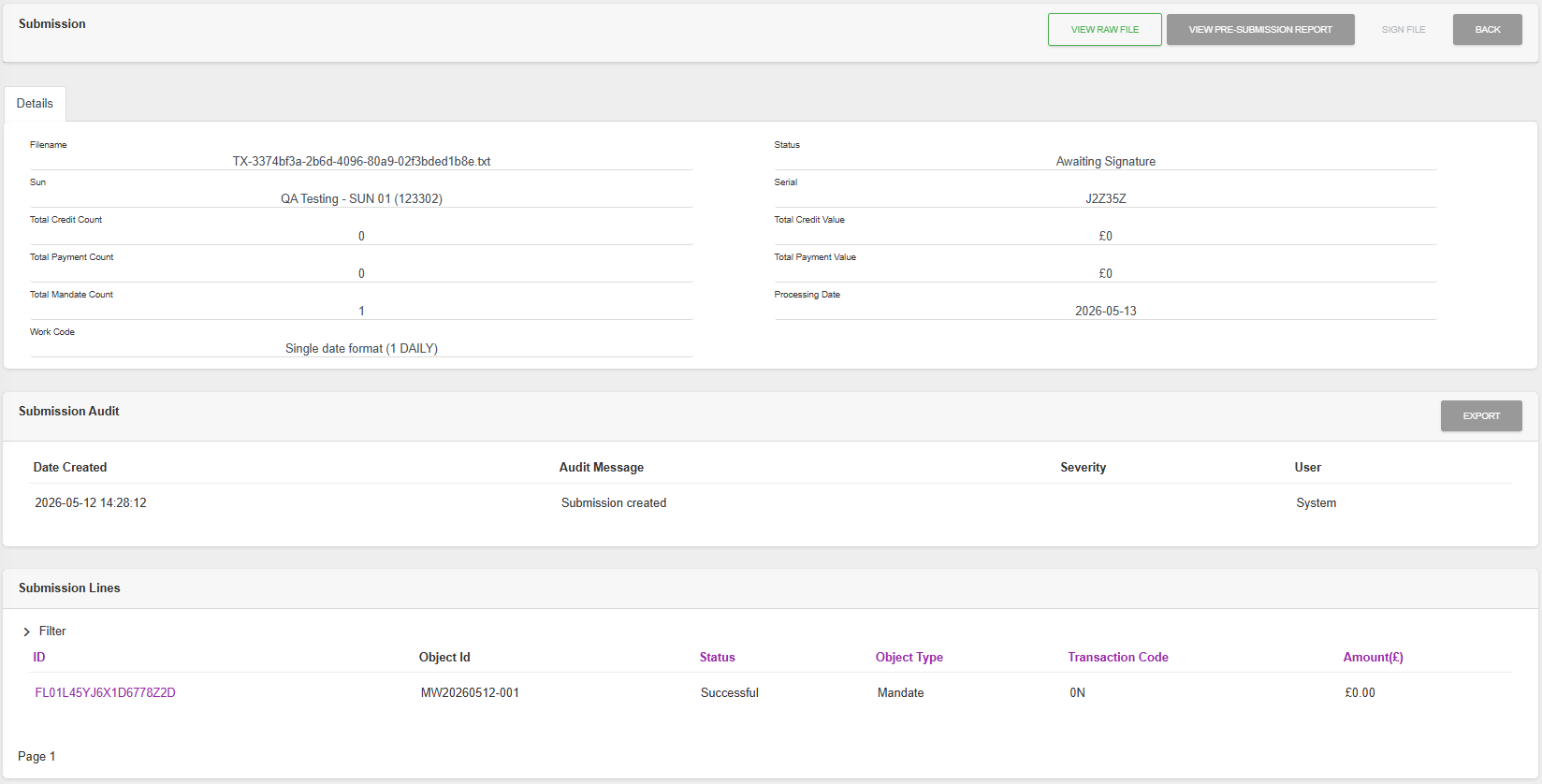
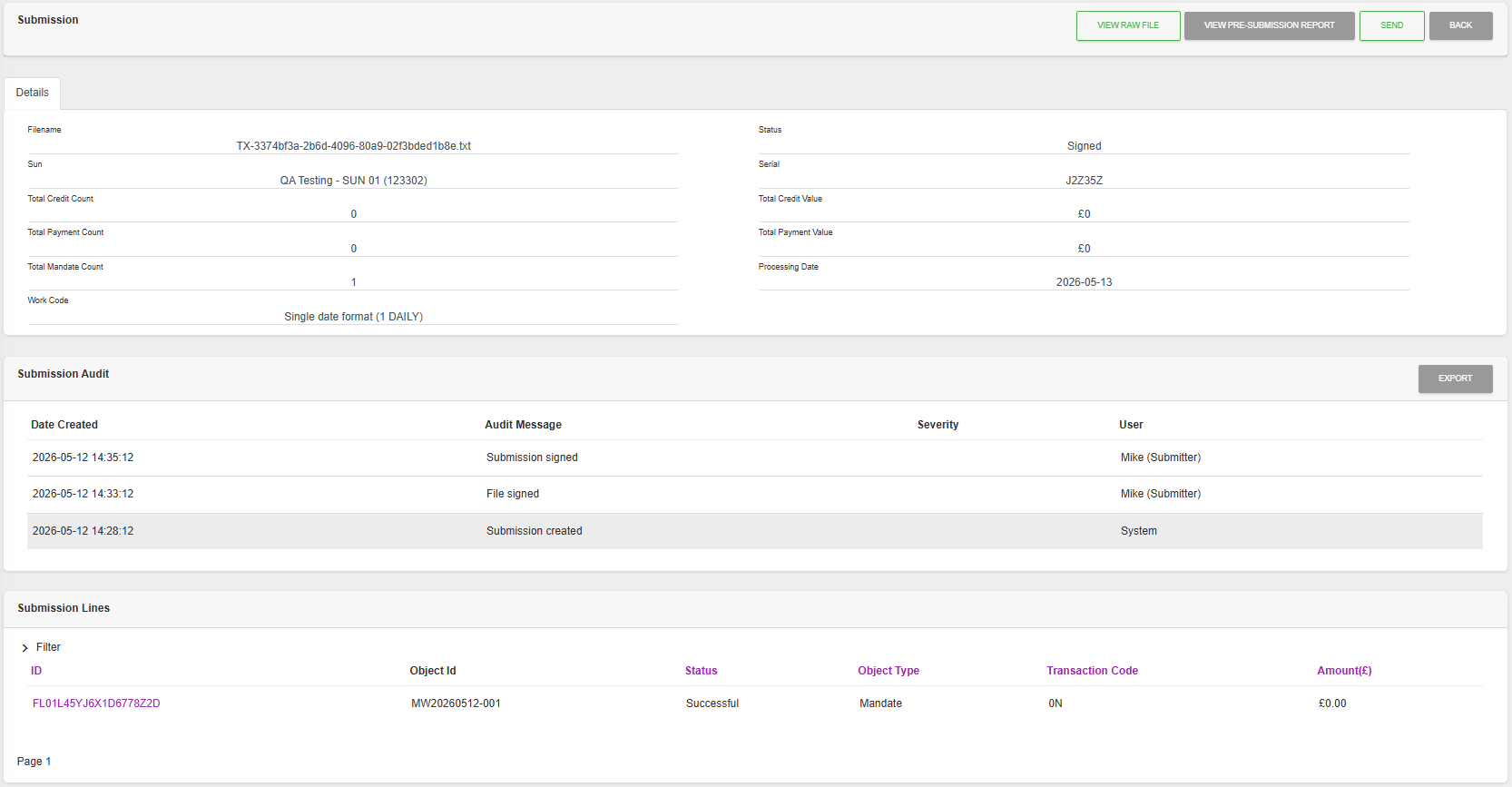
Click on Submission that has a status of “Awaiting Signature”
Signing the File
If “Payment files must be signed” has been set on the SUN, then the first task will be to Sign the File.
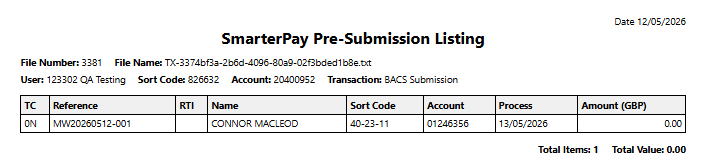
Click “VIEW PRE-SUBMISSION REPORT”.
Check the listing that is shown and close the window. Then click “SIGN FILE”.
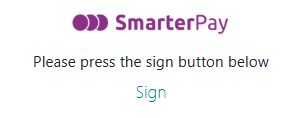
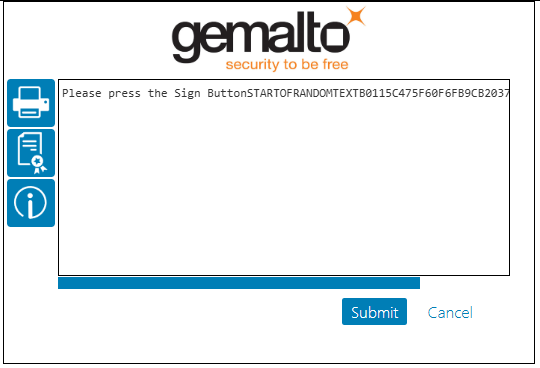
Follow the prompts to sign the file using your Bacs smart card.
Signing the Submission
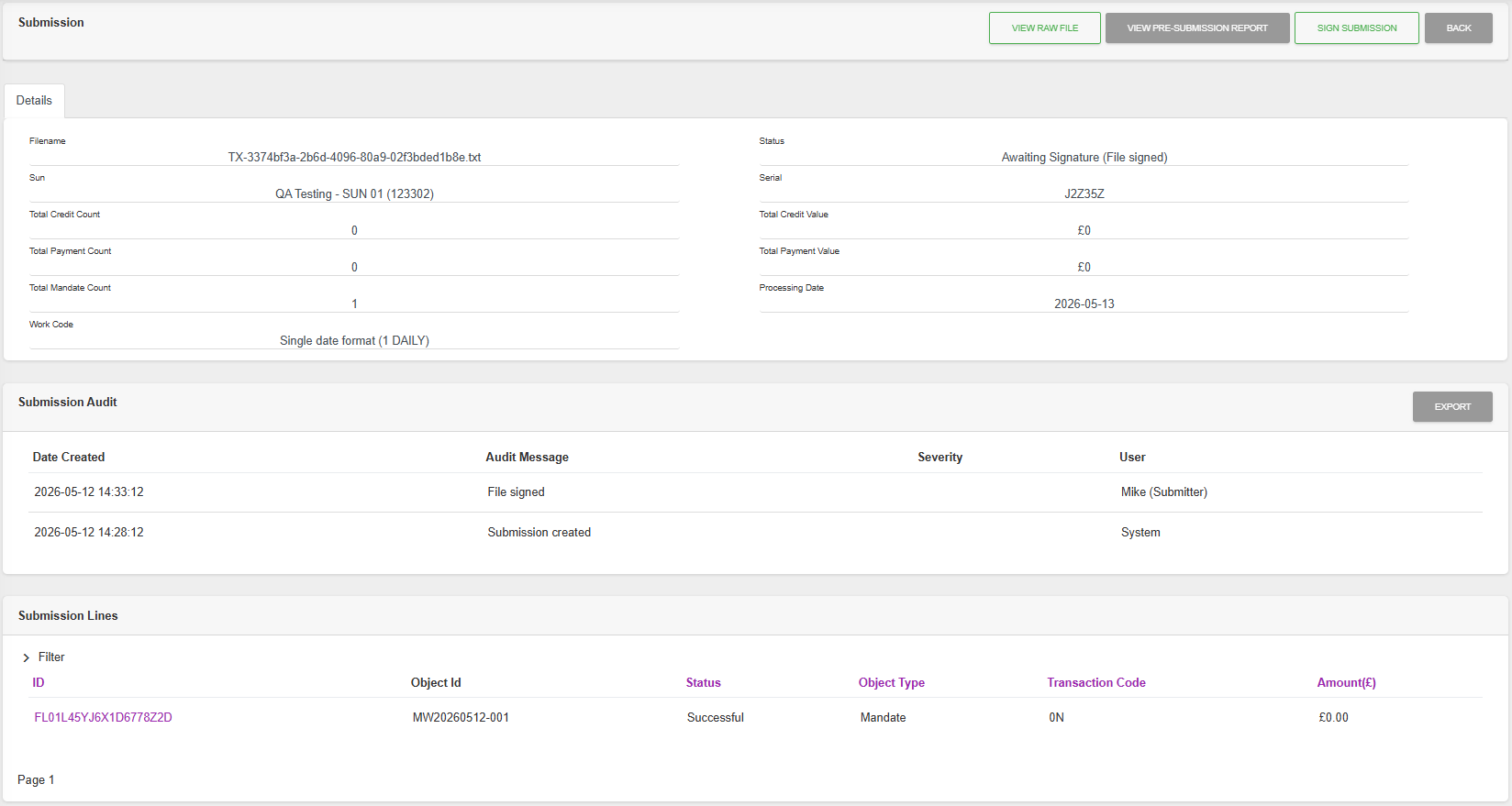
If the file doesn't need to be signed, or has already been signed, the next task it to sign the submission.
Click “VIEW PRE-SUBMISSION REPORT”
Check the listing that is shown and close the window. Then click “SIGN SUBMISSION”.
Follow the prompts to sign the submission using your Bacs smart card.
Send the Submission
Click “SEND”
Follow the prompts to send the submission using your Bacs smart card.
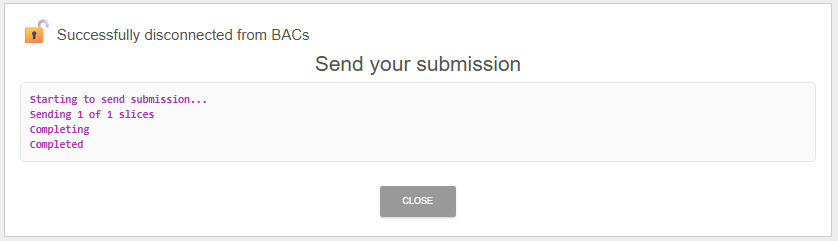
The system connects to Bacs and sends the submission. The submission is sent in slices - the bigger the submission the more slices it takes to send.
You have the opportunity to “Abort” the submission during transmission.
At the end of the transmission the system logs out of Bacs and shows you that it has completed. Or will display an error if appropriate.
Click “CLOSE” to close the progress dialogue and refresh the screen.
The “Submitted With Errors” state is set when an Input Report, is returned from Bacs, contains warnings or errors.