Getting Started
The Portal Section of the documentation guides you through the layout and functionality of the pages within SmarterPay Cloud.
Some pages displayed, and some items on those pages, shown within this Wiki may not be visible to certain users of this software, as smarterPay Cloud is a permission-based system, allowing Administrators to allocate Appropriate Access for each of their end users.
The following sections contains useful information regarding SmarterPay Cloud.
Note: SmarterPay Cloud does not support Internet Explorer (Microsoft Internet Explorer, Windows Internet Explorer, IE, or MSIE).
Login Page
When you navigate to https://smarterpaycloud.com/ you are presented with the Login Screen.
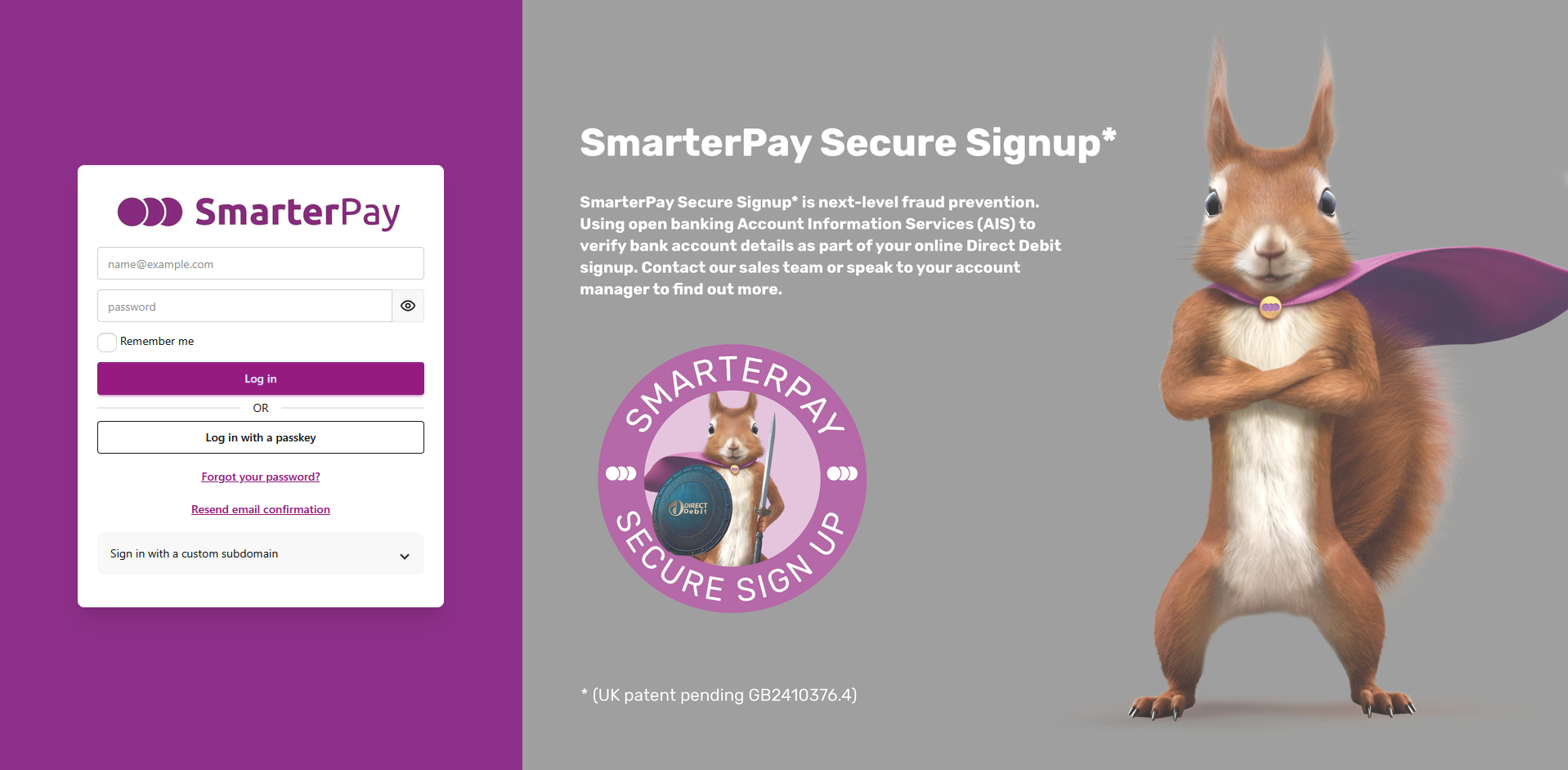
Enter your email address and password, optionally select “Remember me” for your details to be saved in the browser, and click “Log in”.
You will then be taken through the Two-factor authentication process, as setup in your Account.
If you have setup a Passkey for your Account, click “Log in with a passkey” to login to SmarterPay Cloud.
To start the Forgotten Password process click “Forgot your password?”.
If you need to revalidate your email address click on “Resend email confirmation”.
If you have been given a subdomain to use for login, for example for SSO, but have used the generic URL you can click on “Sign in with a custom subdomain”
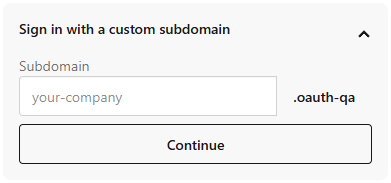
Add the subdomain, and then click “Continue” to take you to the correct endpoint.
Resetting Your Password
Your password can be reset:
- From the Login Page you can click "Forgot your password?".
- Under the Password section of the Manage Account menu.
Top Bar
The Top Bar has functionality related to the set of pages that you are currently on. Clicking on your name displays other available options.
Main Page

Actions
Available actions, subject to permissions, are:
| Action | Description |
|---|---|
| Search Area | Performs a Global Search for the entered text. |
| Quick Actions | Displays Quick Action Links. |
| Settings | Takes you to the Settings Pages of SmarterPay Cloud. |
| Logout | This Logs you out of SmarterPay Cloud and returns you to the Login Page. |
Quick Actions
Available quick actions, subject to permissions, are:
| Quick Action | Description |
|---|---|
| Payment Wizard | Starts the Payment Wizard. |
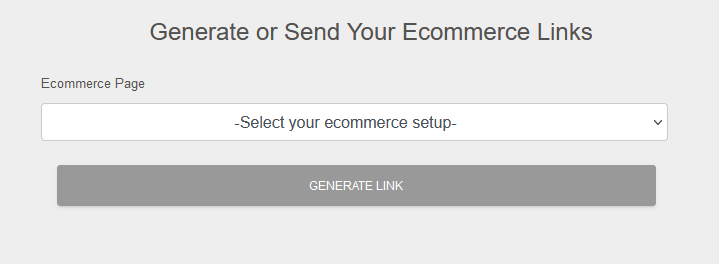
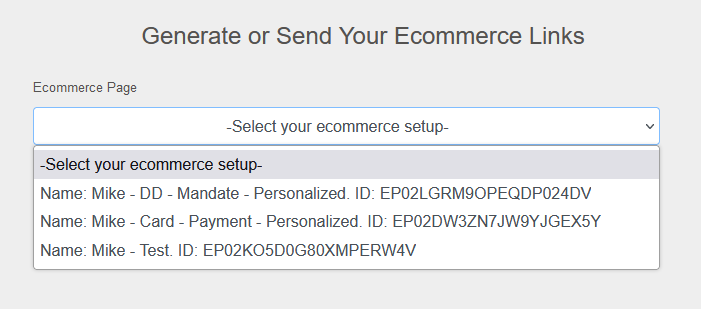
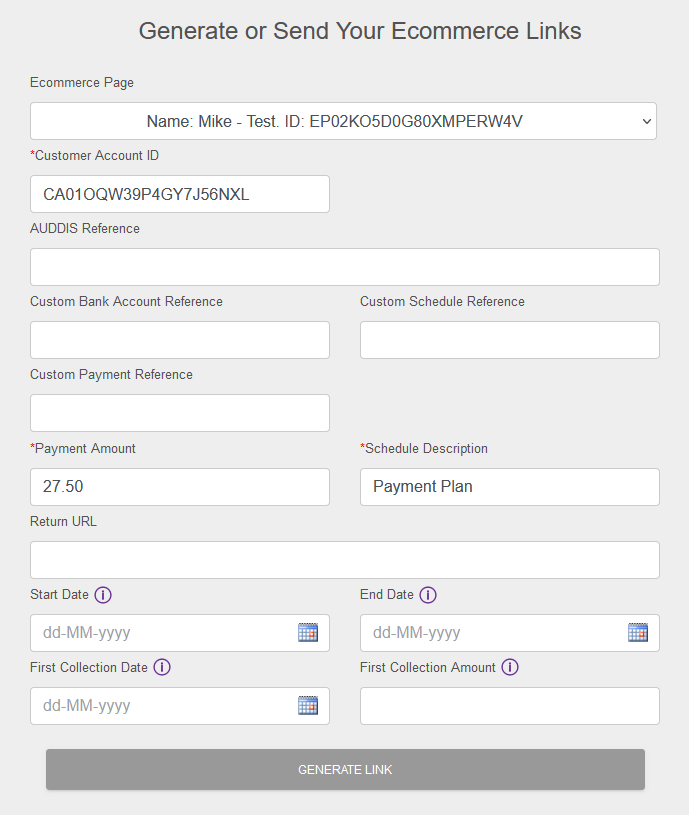
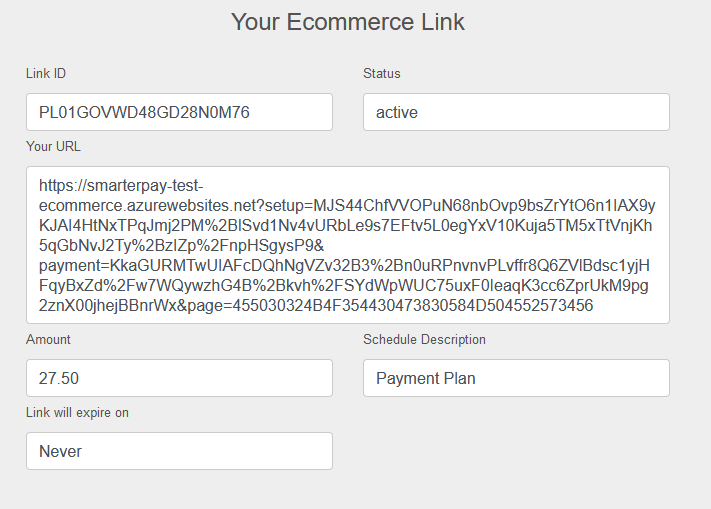
| Ecommerce Link | Click to define and generate Ecommerce Link. More Information |
Settings Page

Actions
Available actions, subject to permissions, are:
| Action | Description |
|---|---|
| Home | Takes you to the Main Pages of SmarterPay Cloud. |
| Logout | This Logs you out of SmarterPay Cloud and returns you to the Login Page. |
Global Search
A search of the system can be initiated by using the Search area on the top bar.

For example, if the name of “hetfield” was typed into the search area and the spyglass icon clicked, any records would be returned under their respective sections.
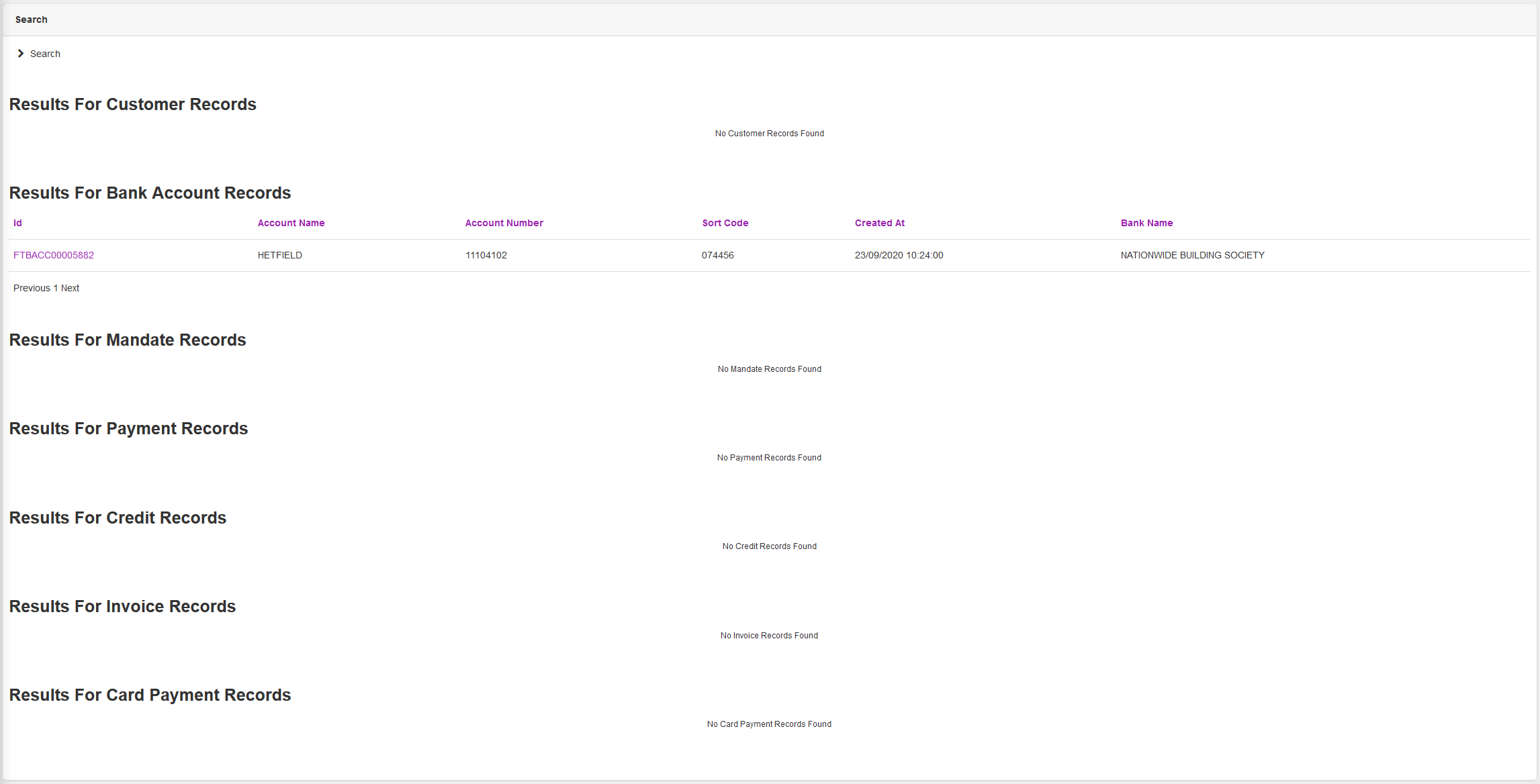
Clicking on the relevant link will take you to that Record.
Maintenance Mode
When SmarterPay Cloud is in Maintenance Mode, for example when updates are being applied, the following page is show.
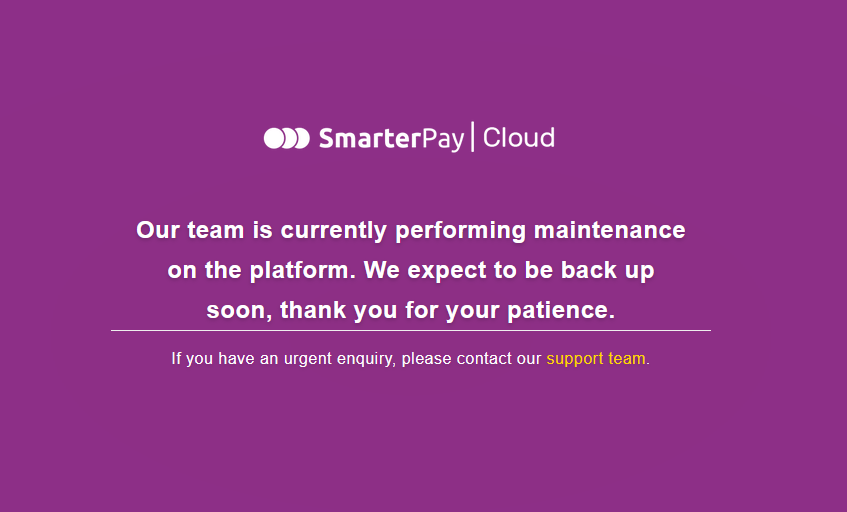
The dates for SmarterPay Cloud updates are published on the login page and sent via email in advance.